


HomeHabit - Smart Home Panel
3.748.00 Reviews
App Specs
- Version
- 39.7
- Updated On
- License
- Free
- Downloads
- 100,000+
- Developer
- Habit Automated LLC
- Categories
- House & Home
- Platform
- Android
Screenshots
 Analysis by AppCompare
I like the idea of having one calm place to check the devices I use around the house, but a shared panel only helps if it fits the way those devices are already set up. That is the question I would keep in mind before installing HomeHabit - Smart Home Panel: it is best approached as a control surface for a smart home you already have, not as a shortcut that makes every device compatible by itself. Starting with one useful device or routine makes the first session feel much less intimidating.
What to expect from a shared home panel
HomeHabit is a free House & Home app from Habit Automated LLC. It has an average rating of 3.7 from around 866 ratings, and more than 100,000 installs. The app is rated for Everyone; it was released on October 10, 2018, and its current version is 39.7. The basic download costs nothing, though in-app purchases range from $0.99 to $99.99 per item, so I would check the purchase details before paying for anything.
The important expectation is that a unified panel is not the same thing as a universal smart-home system. You still need devices and services that HomeHabit can work with, and the experience depends on the particular equipment and connections in your home. If your devices are already scattered across separate manufacturer apps, a consolidated view can reduce the everyday app-hopping. If you are starting from scratch, buying hardware specifically for this panel would be premature until you have checked that it suits your setup.
Make the first setup manageable
For a first-time user, I would resist the urge to connect the whole house at once. Begin with the device you most often adjust, then confirm that it appears in the panel and responds as expected. That gives you a simple test of whether your existing arrangement works before you invest time organizing rooms, controls, or routines. Keep the relevant manufacturer app available during setup; a panel can organize controls, but it does not replace the device’s own account or initial configuration.
If a connection does not appear immediately, check the basic chain rather than repeatedly tapping the control: is the device set up in its own service, is the right account or connection being used, and is the device reachable in its usual app? This is a useful troubleshooting habit because a central dashboard can make a problem look like one app’s fault when the underlying device or service is the real cause. Add more devices only after that first check works.
Build toward one useful action
A good first win is a small, reversible task: bring a frequently used control into the panel and use it when you would normally open its original app. Once that feels dependable, arrange the dashboard around real habits rather than trying to display every available device. For example, put the controls you use when leaving home together, while keeping occasional adjustments out of the way. A dashboard earns its place when it makes a common task easier, not when it contains the most tiles.
Scenes and automations can be useful once the basic controls make sense, but I would start with a routine that is easy to understand and undo. A simple evening setup might group lighting and temperature adjustments you already make, rather than trying to automate an entire night. Before relying on it, test each part separately and consider what should happen if one device is offline. That small check can prevent a convenient shortcut from becoming a confusing one.
Worth Reading Before You Choose

EA SPORTS FC Mobile 26 Is a Bigger Football Game, but It Takes Time

Flipboard Shows What News Apps Must Do Beyond the Feed

Switching to Android Auto Means Rethinking Your Driving Routine

Google Calendar Makes a Crowded Week Easier to Manage

Ludo King Makes the Most of the Minutes Between Plans

Baby Panda World Brings Quick Play to Modern Phones, but Its Game Library Feels Busy
Where a unified panel helps—and where it doesn’t
Compared with opening a separate app for every brand, a central panel can make everyday control feel more coherent. It is especially appealing if you like a custom dashboard and want commonly used controls visible together. On the other hand, a manufacturer’s own app may still be the better place for detailed settings, device-specific setup, or troubleshooting. I would keep those apps installed rather than treating a central panel as a complete replacement.
It is also worth separating control from reliability. A neat dashboard cannot improve a device’s network connection or fix an account issue, and putting several controls in one place can make a single failed connection more noticeable. If a device matters for safety or access, keep its normal control method close at hand and verify that it works independently. I would not make a new panel the only way to operate anything essential until I had tested the arrangement over time.
Who is likely to appreciate it
I would consider HomeHabit if you already use compatible smart-home equipment, enjoy arranging a personal control screen, and find yourself switching between services for routine adjustments. It may also suit a household where a few common controls need to be easier to find, provided the people using the panel are comfortable with the setup. A practical test is to name the three controls you reach for most; if placing them together would genuinely save effort, the app has a clear job to do.
I would skip it for now if you have no smart devices, if your current manufacturer app already handles everything comfortably, or if you want a guided system that chooses hardware and automations for you. It is also not the best fit for someone who does not want to troubleshoot connections or maintain more than one control app. In those cases, using the device makers’ apps—or choosing a dedicated ecosystem and staying within it—may be simpler than adding another layer.
A realistic routine to try
Imagine arriving home with groceries and wanting the entry light and living-room temperature adjusted without searching through several apps. Once those devices are connected and placed where you can find them, the panel can bring that routine into one deliberate sequence. I would first try each control individually, then decide whether a scene is worth creating. If the sequence saves only a moment but makes it harder to understand what changed, separate controls may be the better choice.
That example also points to a useful design trade-off: a dashboard should reflect how you think about the home, not simply mirror the list of devices. Grouping by room can help when you are standing in that room; grouping by occasion can be faster when you are leaving or settling in. Try one arrangement for a few days before reorganizing everything. The best layout is the one that makes the next action obvious to the people who actually use it.
Initial Impressions
Downloading the app was a breeze. Available on both Android and iOS, HomeHabit boasts a sleek and intuitive interface. Right after launching, I was greeted by a clean dashboard that wasn’t cluttered, which is always a good sign. The app walks you through connecting your devices step by step, making it super user-friendly even for those of us who aren’t tech wizards.
Features Galore
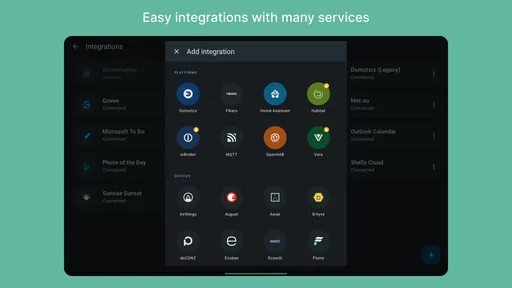
One of the standout features of HomeHabit is its compatibility with a wide range of smart devices. Whether you’re a Google Home enthusiast or an Alexa aficionado, this app has got you covered. I was able to connect my Philips Hue lights, Nest thermostat, and even my Ring doorbell seamlessly. The integration was smooth, and I didn’t experience any connectivity issues.
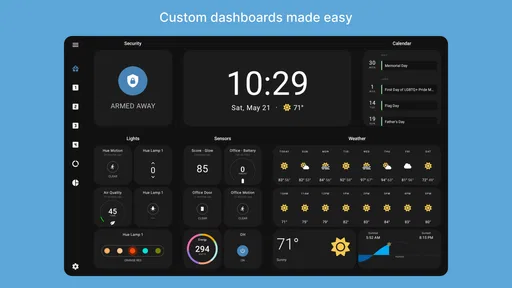
The app offers customizable widgets, which is a huge plus. I set up my dashboard to show my most used devices, and it made the whole experience more personalized. The ability to create scenes and automations is also handy. Imagine setting a "Movie Night" scene that dims the lights and adjusts the thermostat with just one tap. Yeah, it’s that cool.
Performance and Usability
Performance-wise, HomeHabit didn’t disappoint. The response time when controlling devices was almost instantaneous. I tested it on both Wi-Fi and cellular data, and it worked flawlessly in both scenarios. The app didn’t crash or lag, which is crucial when you're managing your home environment.
Usability is another area where this app shines. The interface is intuitive, and I didn’t find myself fumbling around trying to figure out how to do basic tasks. The developers clearly put a lot of thought into the user experience, and it shows. You can tell they designed it with the average user in mind, which I appreciate.
Security and Privacy
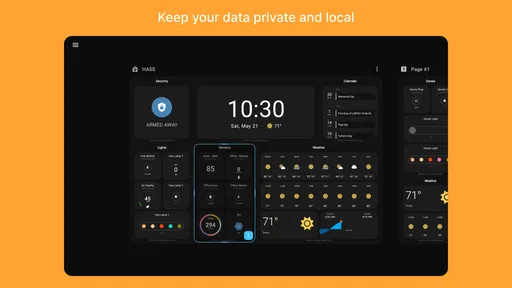
Now, let’s talk about security, because it’s a major concern when dealing with smart home devices. HomeHabit employs robust encryption protocols to ensure your data stays secure. I felt confident knowing that my personal information and device data were well-protected. The app also doesn’t require unnecessary permissions, which is always a good indicator of a privacy-conscious application.
Room for Improvement
No app is perfect, and HomeHabit is no exception. While the app is generally fantastic, I noticed that the initial setup process could be a bit daunting for complete beginners. A more guided setup or a help section with videos could make the onboarding process smoother.
Another area for improvement could be the addition of more native integrations. While it covers the most popular devices, expanding its reach to include lesser-known brands would make it even more versatile.
Lastly, a dark mode option would be a nice touch for those of us who prefer a less glaring interface, especially when using the app at night.
Final Thoughts
Overall, HomeHabit - Smart Home Panel is a solid app for anyone looking to centralize their smart home experience. It’s easy to use, performs well, and keeps your data secure. While there’s always room for improvement, the current features make it a worthy addition to your smart home arsenal. So, if you're tired of juggling multiple apps for your devices, give HomeHabit a try. You might just find it becomes your new favorite app.
Decide by testing your own setup
Before making the panel part of your household routine, check whether your specific devices and services connect as expected. Compatibility in a broad sense does not guarantee that every model or feature behaves identically, so test the controls you care about rather than assuming every capability will carry over. If a control is missing or incomplete, the original app remains the sensible fallback.
My overall recommendation is to treat HomeHabit as a customizable front door to controls you already understand. Its strongest appeal is convenience: bringing familiar actions into a space you can shape around your habits. The trade-off is the extra setup and the need to keep an eye on connections and device-specific details. For a curious smart-home owner willing to build a dashboard gradually, that balance can work well; for someone seeking a fully managed, hands-off system, a simpler manufacturer-led setup is likely a better match.
Pros
- User-friendly interface for easy navigation.
- Supports multiple smart home devices.
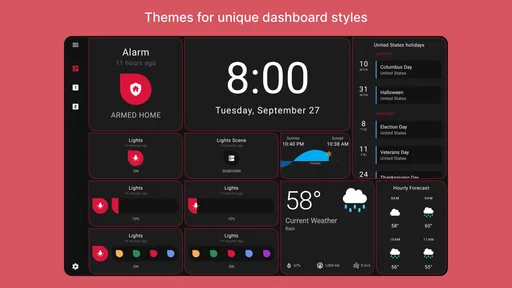
- Customizable dashboard layouts.
- Fast and responsive controls.
- Offline functionality available.
Cons
- Limited advanced automation features.
- Occasional sync delays with devices.
- Requires setup time for customization.
- Some features locked behind paywall.
- Limited support for older devices.
FAQs for HomeHabit - Smart Home Panel
What platforms does HomeHabit - Smart Home Panel support?
HomeHabit - Smart Home Panel is available for both Android and iOS devices. It provides users with a seamless experience on smartphones and tablets, ensuring compatibility with a wide range of devices. Whether you use an Android phone or an iPad, HomeHabit is designed to integrate smoothly with your smart home setup.
Is HomeHabit compatible with all smart home devices?
HomeHabit supports a wide variety of smart home devices and platforms, including popular systems like Google Home, Amazon Alexa, and SmartThings. However, it's advisable to check the app's compatibility list on its website or app store page to ensure it supports your specific devices before downloading.
Does HomeHabit require a subscription or any in-app purchases?
HomeHabit offers a free version with basic features, but it also provides a premium subscription for users who need advanced functionalities. The premium version includes features like unlimited widgets and enhanced customization options, which can enhance your smart home control experience.
How user-friendly is the HomeHabit interface?
HomeHabit is designed with user-friendliness in mind, featuring an intuitive interface that allows users to easily set up and manage their smart home devices. The app supports drag-and-drop functionality, customizable dashboards, and a variety of widgets, making it accessible for both beginners and advanced users.
What kind of customer support does HomeHabit offer?
HomeHabit provides customer support through various channels, including email and an online help center. Users can access a comprehensive FAQ section and community forums for additional assistance. The developers are responsive and continuously work on updates based on user feedback to enhance app functionality.


